
Pick it. Check the comps. Know what you made.
PickComp is an app for people who buy at thrift stores, estate sales and garage sales, then resell online. Snap a find and see what it is and what it sells for, before you pay for it. Then keep the books on everything you bought, without a spreadsheet. It works on Android and on your laptop in the browser. iPhone is coming soon.
Help test PickComp on Android
Beta testers get the Seller plan free for three months after paid plans launch. After that your account moves to Free, unless you subscribe.
From the shelf to sold
PickComp follows a buying trip the way it really goes: a quick look at the sale, a lot of sorting at home, and listing in batches later.
Shoot it, look it up, decide
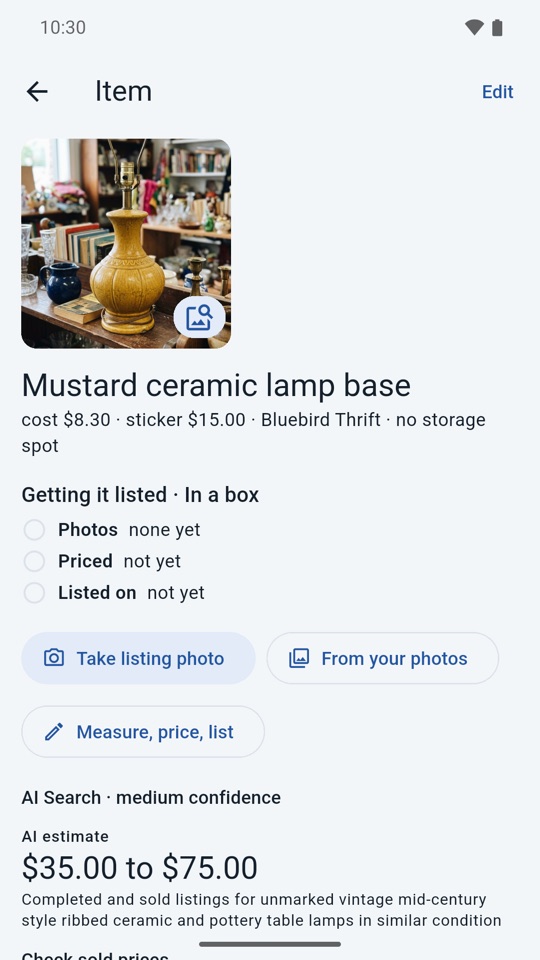
- Take a photo or scan a barcode. In seconds you see what it likely is, the maker and era, its condition, things to watch out for, and an estimated price range.
- Check sold prices on eBay, Poshmark, Mercari and Google with one tap each, and see what is for sale now on Depop. Google Lens is one tap away from every photo.
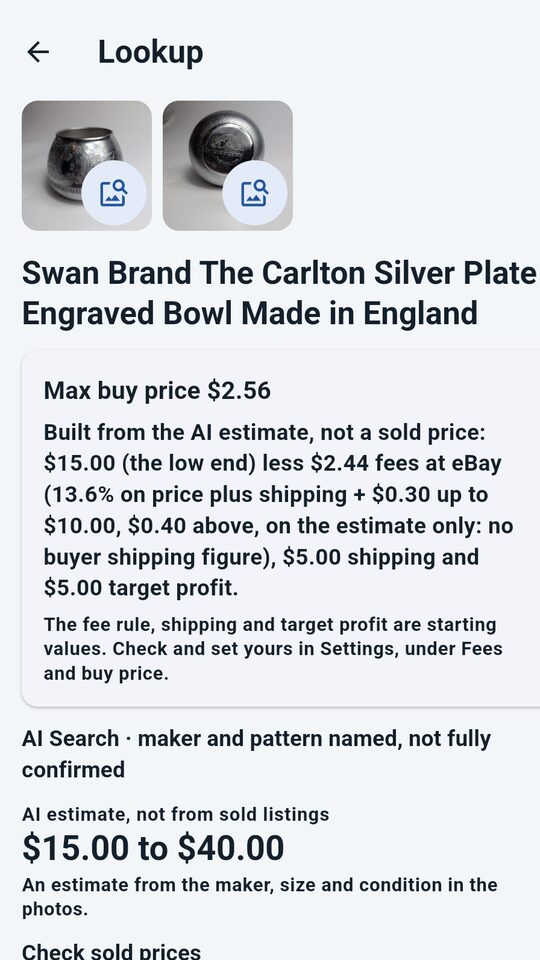
- See a max buy price: the AI estimate less the fee, shipping and the profit you want. Mark it Bought or Pass. Passes keep their lookup too, so you remember why you left it.
Every item carries its real cost
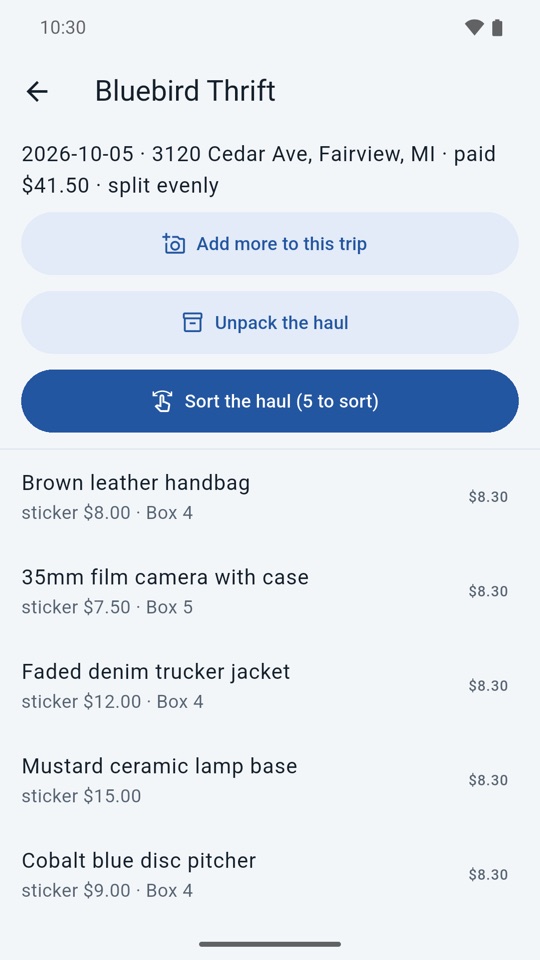
- Enter what you paid. PickComp splits the total across everything you bought, to the cent, including bags bought whole.
- Trips can fill in the driving miles from Google Maps and log them as mileage, including the drive home.
Unpack the haul, best finds first
- Name things as they come out of the bag, with a photo if you want one, and note which box they go in.
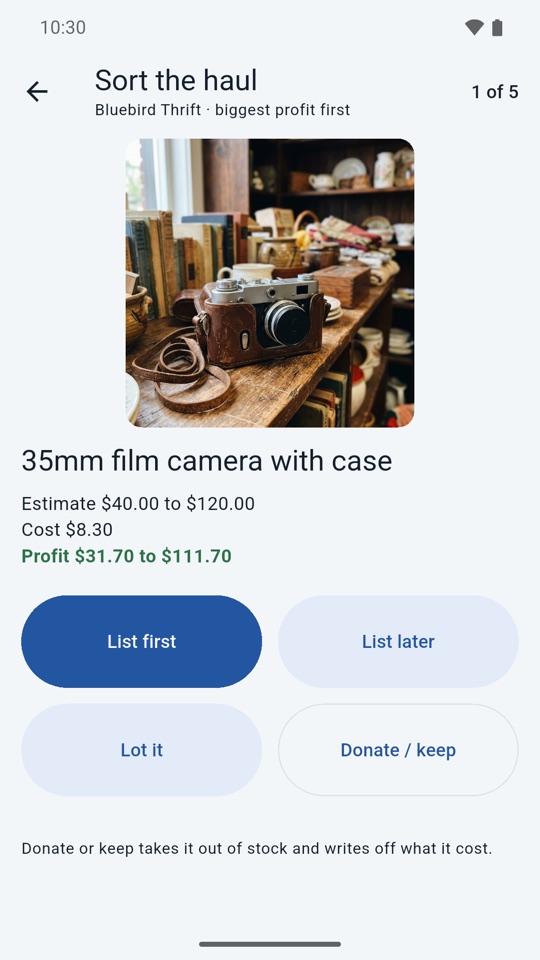
- Sort the haul one item at a time, biggest likely profit first: list it now, list it later, lot it, or donate it.
- Name your bins, shelves and bags as storage spots, and print QR labels for them. Scan a label to see what is inside.
Know what is ready and what it made
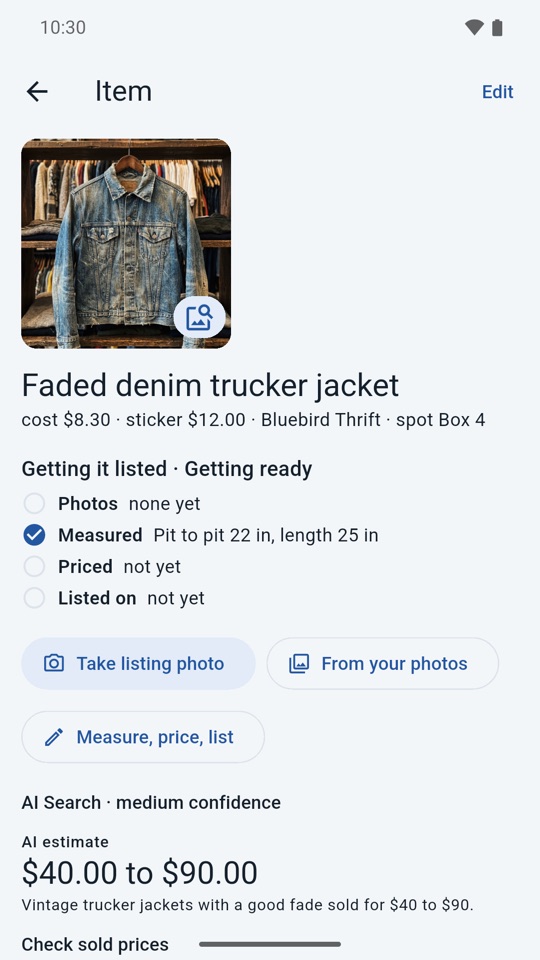
- Each item has a short checklist: photos, measured, priced, and which platforms it is listed on.
- Mark it sold with the price, fee and shipping. The fee fills in from your fee rule for that platform and reads as estimated until you confirm it. Profit is always worked out from those parts, so it is never out of date.
Reports without the spreadsheet
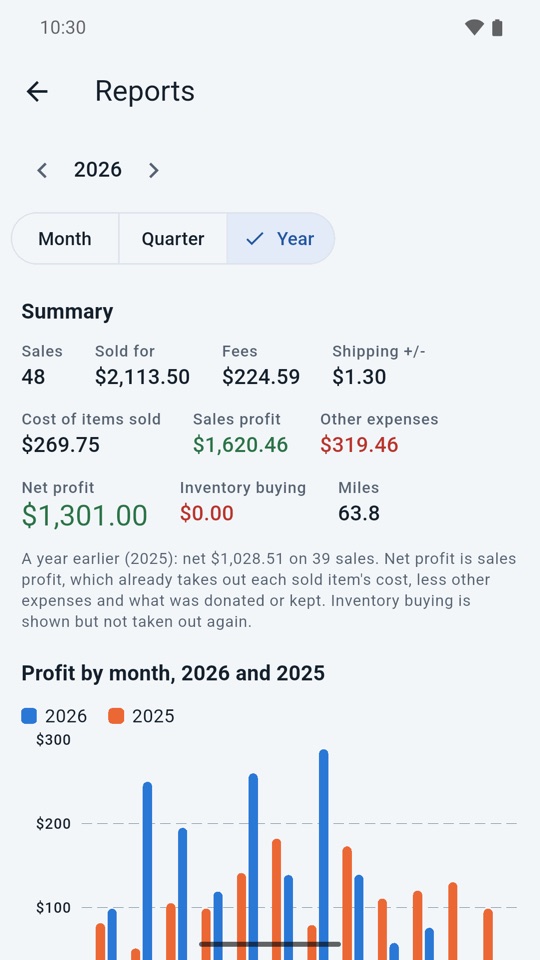
- Sales, expenses and mileage in one place, with profit by platform for any period. Miles show in dollars at the IRS standard rate, as a figure for your records.
- Already track your items in a spreadsheet? Import them from an .xlsx or .csv file.
- Download everything as a spreadsheet whenever you want it. Your records never depend on the app.
New in version 1.3.0
Fees, a buy price, storage spots, import and mileage value. All of it is on the Free plan.
Max buy price
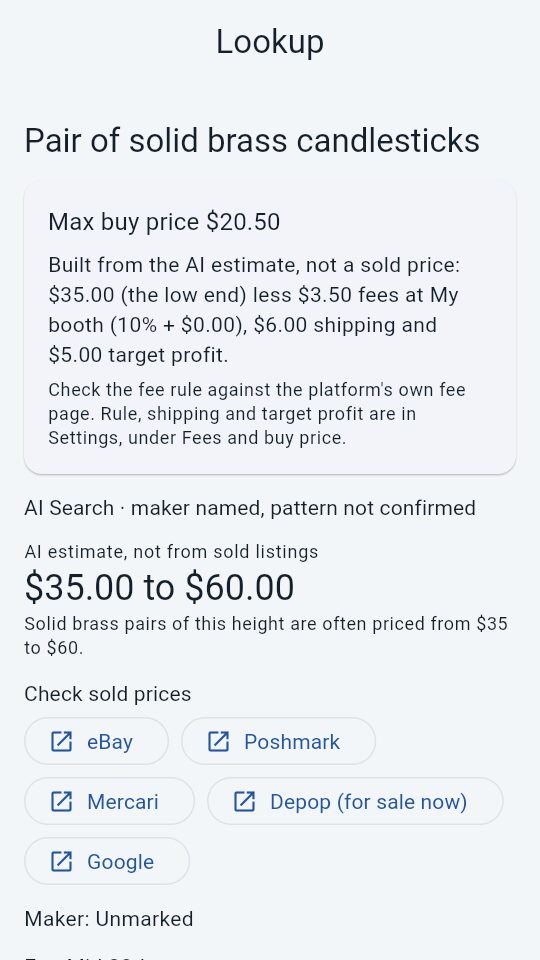
The most to pay and still make your target profit. It starts from the low end of the AI estimate (or the one end it gives), then takes off the fee, your shipping and your profit. The sum is on screen, and it says it is built from an estimate, not a sold price.
Storage spots
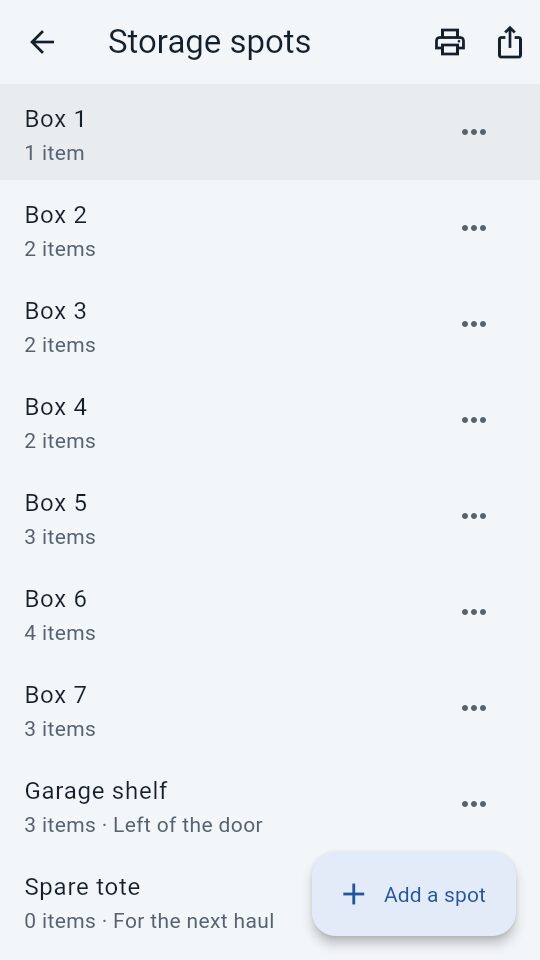
Name your bins, shelves and bags and see what is in each. Print a sheet of QR labels, or share it as a PDF. Scan a spot label in Inventory to open that spot's items.
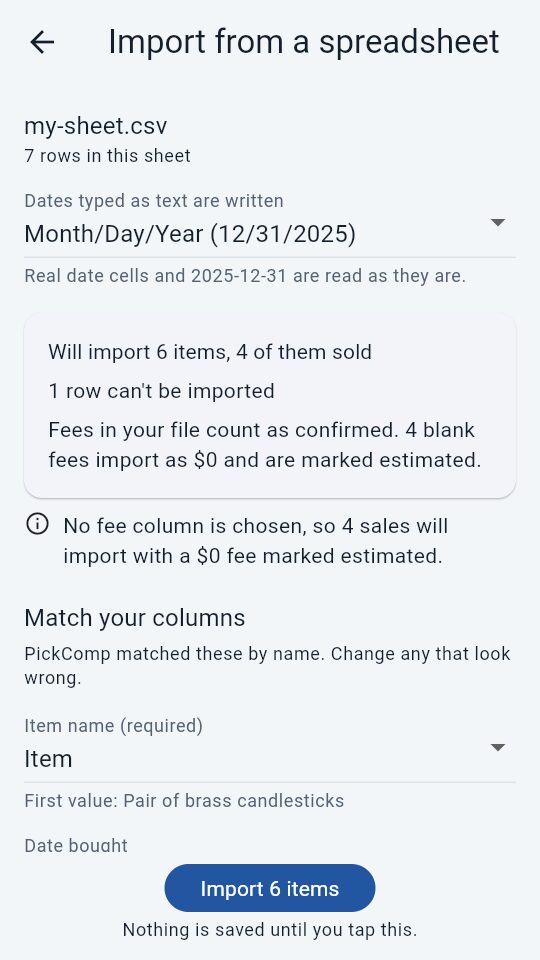
Import from a spreadsheet
Bring in items and sales from an .xlsx or .csv file, including a PickComp export. Check how the columns match, and see every row that will not import before anything is saved. Running the same file again does not add items twice.
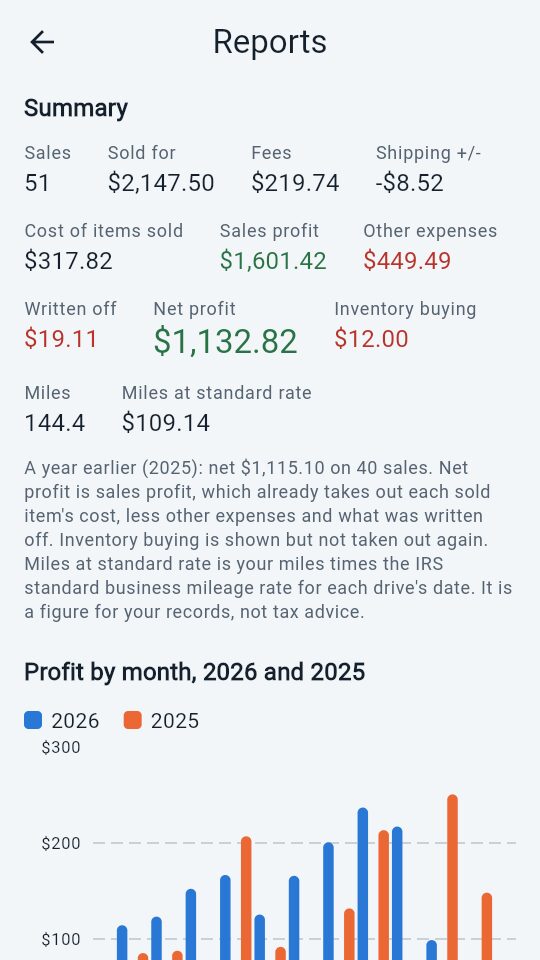
Miles in dollars
Reports shows what your miles are worth at the IRS standard rate for the day of each drive. The spreadsheet and the tax summary use the same rate. It is a figure for your records, not tax advice.
Made for how resellers really work
Fast at the sale
A first answer in a few seconds and a closer look right behind it, so it helps you decide while the item is still in your hand.
Honest numbers
Costs split to the cent, fees and shipping counted, write-offs tracked. Profit comes from the parts, not a number typed in once.
Phone and laptop
Shop with your phone, then list and do the books on your laptop at app.pickcomp.com with the same account.
Read the details before you install
What each part does, in plain words, and what it does not do.
Photo lookup
What you see, what "Possible match" means, the max buy price, and how to open Google Lens on your photo.
Trips and costs
The cost split, the at-home work, storage spots, fees, sales, reports and import.
Plans
Free, Seller at $14.99 a month, and what counts as a lookup.
FAQ
Short answers about phones, prices, data and more.
Join the beta
The PickComp beta for Android is open now. Beta testers get Seller free for three months after paid plans launch, and help shape what comes next.
On iPhone? These steps are for Android only. PickComp for iPhone is coming soon to the App Store.
- Join the beta group with the Google account you use on your Android phone.
Join pickcomp-beta - Become a tester on Google Play with the same account.
Become a tester - Install PickComp from the Google Play link on that page, and sign in with Google using that same account.
Beta testers get the Seller plan at no charge for three months after paid plans launch. Then the account moves to Free, with 75 lookups a month, unless you subscribe to Seller. See Plans. Found a problem or have an idea? Write to support@pickcomp.com.