
Photo lookup: what you get, and how far to trust it
Snap a find and PickComp tells you what it likely is, what it might sell for, and how sure it is. It says plainly when it is guessing.
What you see after a lookup
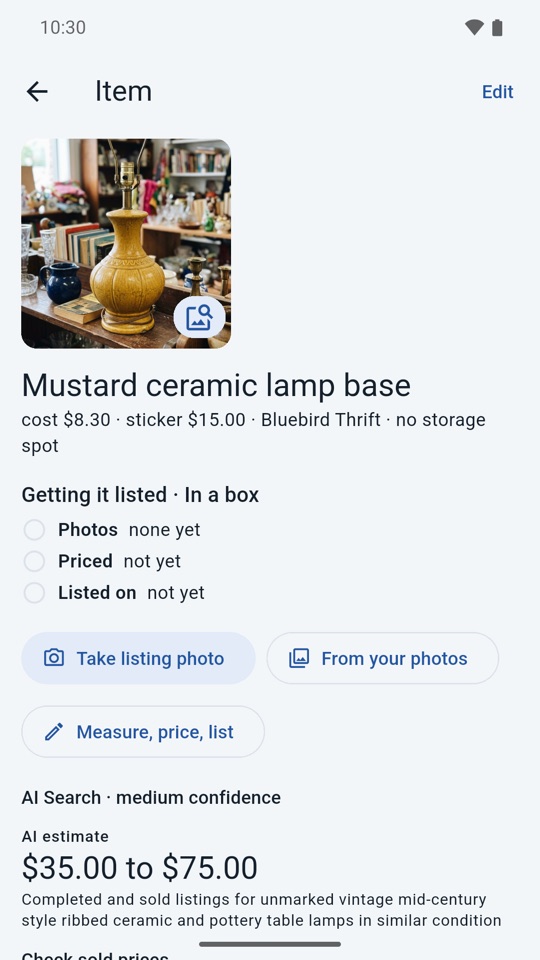
Take photos of an item at the sale, or scan its barcode. When the lookup finishes, the item shows:
- Maker, model or pattern, era and material, but only the ones it could read or support from your photos.
- Condition and watch-outs, like chips, missing parts or things that are easy to confuse with something else.
- Search words you can use when you check sold prices.
- An AI price range, with a line on what the range is based on.
- A confidence line in plain words (see below).
Then you decide: Bought, or Pass. Passes keep their lookup, so you remember why you left it.
How it reads an item
PickComp looks at all the photos of one item together, not just the first. That includes marks, labels, tags and backstamps, because that is where the real answer usually is.
- Shoot the front first, then the mark. The bottom of a dish, the tag inside a coat, the label on a box.
- A barcode helps. If you scan one, it is used as a strong clue.
- It reads what is there. A maker printed on the item is used. A pattern name that is not printed anywhere is not stated as fact.
The lookup runs while you decide, so you can keep going.
How sure is it?
The app does not just say "high" or "low". The line under the answer says what was actually read from your photos. These are the lines you will see:
The confidence is capped by what the photos show, so the AI cannot sound surer than the marks it read. "Read from the item" means a mark or label said so. It does not mean the whole answer is right, so check it before you list.
What "Possible match" means
Plenty of dishes, glassware and collectibles do not have the pattern name printed on them. A backstamp might give you a maker and a date, and nothing else. A pattern still has to be worked out by looking.
When PickComp has an idea for a pattern that is not printed on the item, it shows it as its own line, labeled like this:
- It is a lead to check, not an identification.
- It is never used as the item's title.
- It is not counted as "read from the item" in the confidence line.
Check it in Lens or against your own knowledge before you put it in a listing. A wrong pattern name in a listing costs you sales or returns.
If it is not sure
- It asks for a close-up of the mark. If the answer is shaky, or there is a stamp or label it could not read, the item shows "Add a close-up of the mark: the backstamp, label or tag, flat and in good light." One tap opens the camera. The lookup then runs again.
- Google Lens is one tap from every photo. Lens opens on that photo, in the Lens app on your phone or in the browser on a laptop or iPhone. PickComp hands Lens the photo and reads nothing back.
- Check sold prices. Five buttons, below.
The web search
The answer shows first. Then PickComp searches the web for pages that show the same item, on its own, with no tap. It adds:
- A short overview of what the pages say about the item.
- Up to five pages it found, each with the price that page asks, as a link you can open.
- A range of those asking prices, with the date they were read.
These are asking prices, what sellers want today. They are not sold prices. A page may show a different item, so open it and check. PickComp only lists pages that appeared in that search, and it does not open them for you.
The web search counts as 1 more lookup, only when it finds matching pages. If it fails or finds nothing, you keep the answer and are not charged for the search.
Max buy price
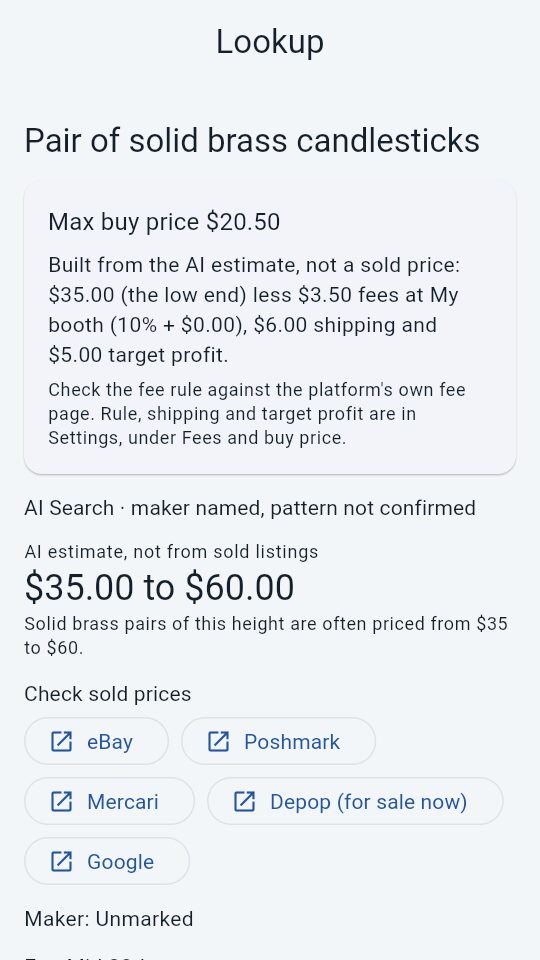
Under every finished lookup, PickComp works out the most you could pay and still make your target profit. It shows the sum, so you can check it:
- Start: the low end of the AI estimate. With only one end given, that one.
- Take off: the platform's fee on that price from your fee rule, your shipping, and your target profit.
- Set your own fee rule, shipping and target profit in Settings, under Fees and buy price. Until you save them, they are starting values, and the lookup says so.
It is built from the AI estimate, not from a sold price, and the screen says so. If the estimate cannot cover the fee, shipping and your profit, it says no price clears your target. With no fee rule for the platform, or no estimate, it shows no max buy price.
Check what it sold for
The AI price range is an estimate. It is not an appraisal and it is not a list of sold prices. To see what things really sold for, every lookup has buttons that open each site's own search in its own window:
| Button | What it opens |
|---|---|
| eBay | eBay sold and completed listings for your search words |
| Poshmark | Sold listings |
| Mercari | Sold listings |
| Depop (for sale now) | What is for sale now. Depop has no sold search, so the button says so. |
| A web search for your search words plus "sold" |
Those buttons open the sites in your browser. PickComp reads nothing back from them. You look, and you decide.
Search again, and fix a bad photo
- Add more photos to an item whenever you like. Photos save right away.
- Remove a photo that is blurry or wrong.
- Search again runs a new lookup on the current photos. It uses 1 lookup, or 2 when its web search finds matches, and only when you tap it. The screen says so.
A lookup that does not finish does not count against your allowance.
One edit page per item. Tapping an item opens one edit page, with Delete photos, Search again, Save and Cancel all on it.
What it does not do
- It does not give you sold prices inside the app. It points you to the sites that have them.
- It does not list your item on a marketplace for you.
- It does not appraise anything. The price range is an AI estimate, and the terms say so.
- It does not claim to know a pattern that is not on the item.